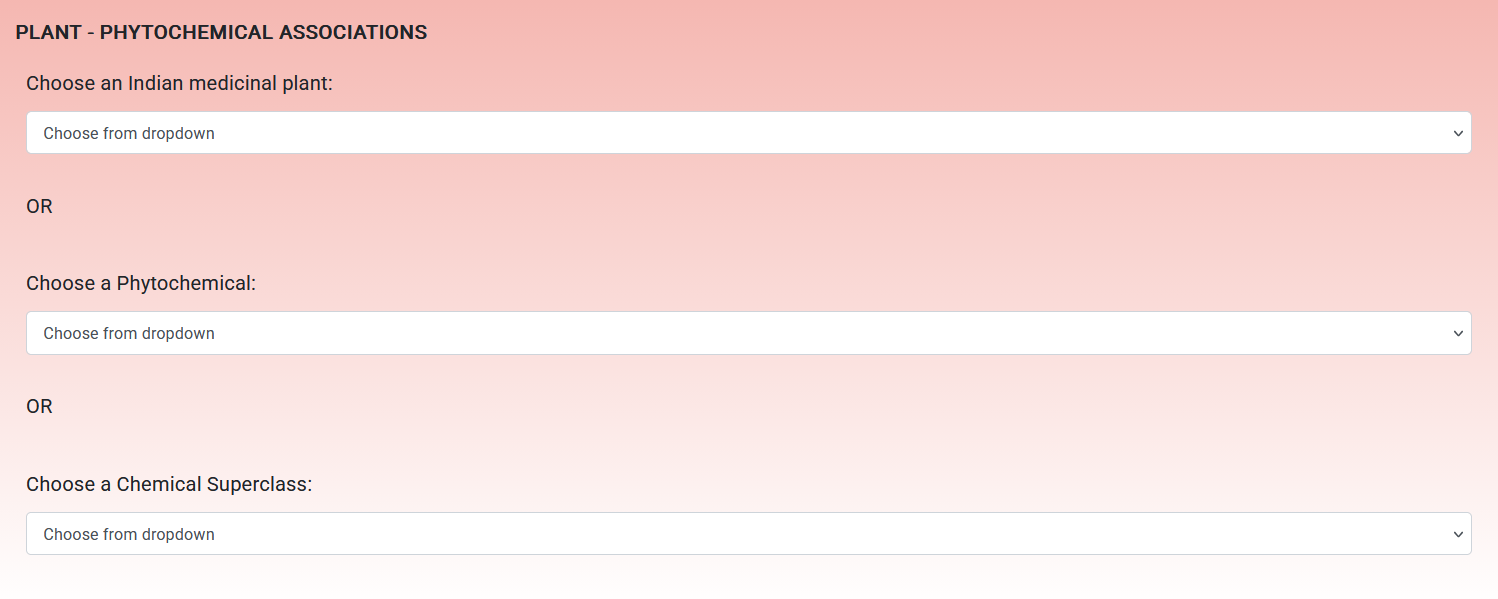
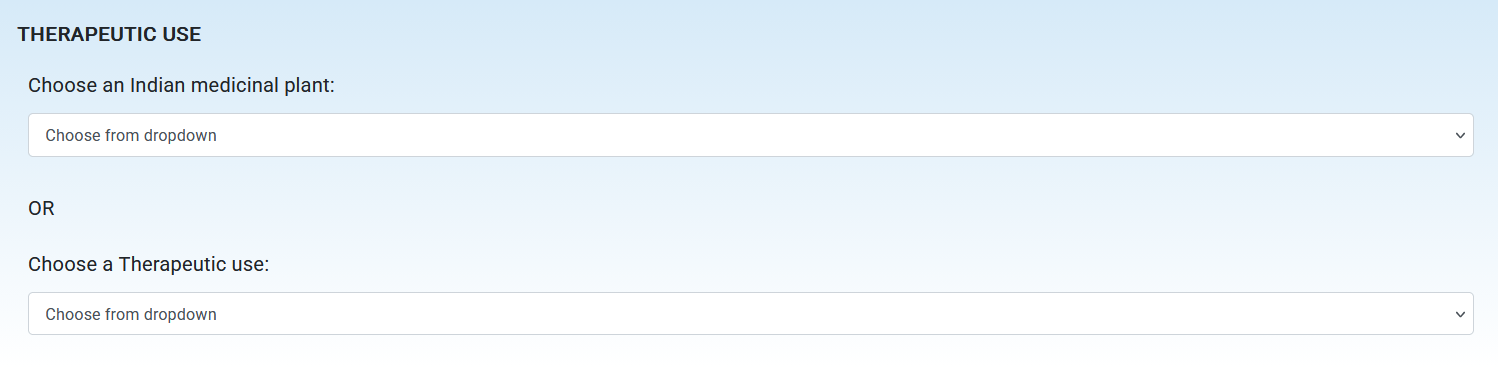
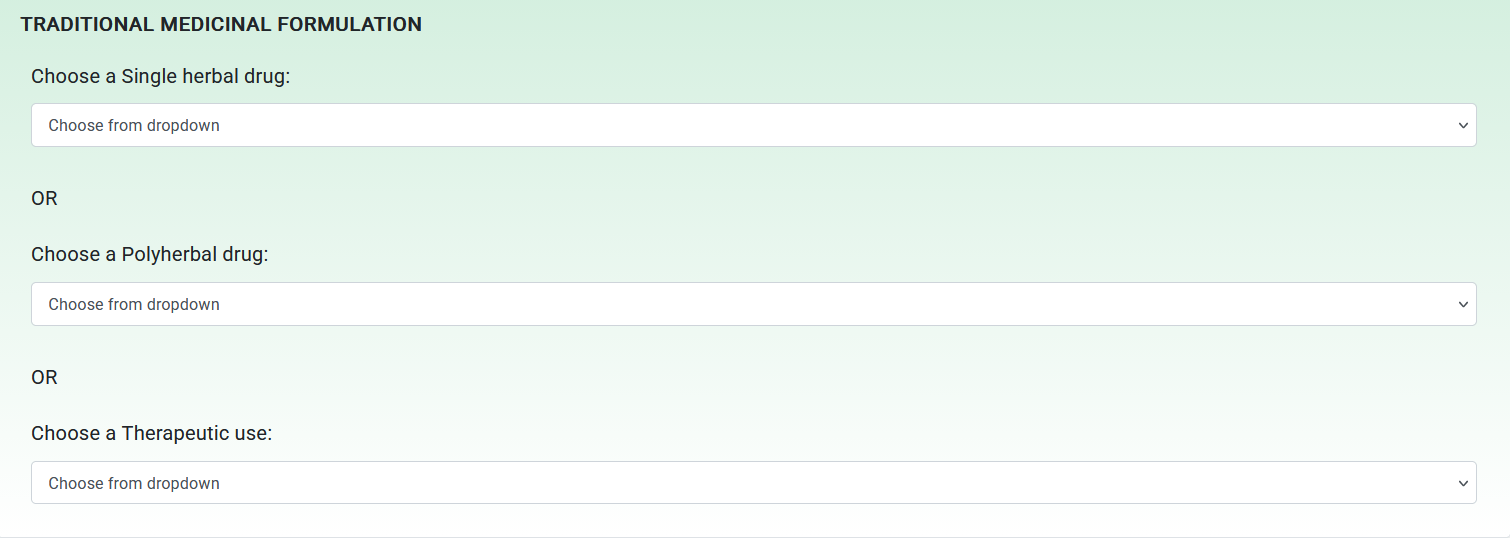
Users can choose the scientific name of an Indian medicinal plant from the drop-down menus within the Browse section on the homepage to view the phytochemical associations and therapeutic uses of the corresponding plant in our database. Note that the scientific names of the Indian medicinal plants in the drop-down menus are listed in alphabetical order.
Users can also select a phytochemical in the drop-down menu to view the Indian medicinal plants associated with that phytochemical. Similarly, users can select the name of a chemical superclass in the drop-down menu to view the list of phytochemicals belonging to that chemical superclass. By selecting a therapeutic use in the drop-down menu, users can view the Indian medicinal plants, Single herbal drugs or Polyherbal drugs associated with that therapeutic use. Users can also choose the name of a Single herbal drug or Polyherbal drug in the drop-down menu to view the ingredients and therapeutic uses of the corresponding traditional medicinal formulation.
BASIC SEARCH
Users can use Basic search page to search for plant - phytochemical associations, plant - therapeutic use associations or traditional medicinal formulations in our database.
Plant - Phytochemical associations
Users can obtain information on the phytochemical associations of Indian medicinal plants using the Basic search page by querying for:
Phytochemical names
IMPPAT phytochemical identifiers
Scientific names or common names of medicinal plants
The results of a search for the plant - phytochemical associations is displayed as a table containing the scientific name of the Indian medicinal plant, plant part, IMPPAT phytochemical identifiers, phytochemical names, and references to the relevant literature sources.
In the search results table, users can click the scientific name of the plant to view detailed information about the plant and all its associated phytochemicals. Users can also click an IMPPAT phytochemical identifier or phytochemical name to access a separate page containing detailed information on the corresponding phytochemical, including its chemical structure, physicochemical properties, drug-likeness assessments, predicted ADMET properties, chemical descriptors, human target proteins, clinical trials, bioactivity, and patents. From this dedicated phytochemical page, users can also download the 2D and 3D structures of the phytochemical in several file formats.
Therapeutic use
Users can obtain information on the therapeutic uses of Indian medicinal plants using the Basic search page by querying for:
Therapeutic use or disease name
Scientific names or common names of medicinal plants
The results of a search for the therapeutic uses of an Indian medicinal plant are displayed as a table containing the scientific name of the Indian medicinal plant, plant part, therapeutic uses, therapeutic use identifiers, mappings to other databases, and references to the relevant literature sources.
In the search results table, users can click the scientific name of a plant to view detailed information about the plant and all its associated therapeutic uses.
Traditional medicinal formulation
Users can obtain information on traditional medicinal formulations using the Basic search page by querying for:
Formulation name in either Sanskrit [IAST] or English
Formulation identifier
Scientific names or common names of medicinal plants
Therapeutic use or disease name
The results of a search for a formulation (which can be Single herbal or Polyherbal) are displayed as a table containing the formulation name, formulation identifier, ingredients of the formulation, plant parts used for the plant ingredients, therapeutic uses, the Ayurvedic principles of drug action (Rasa, Guna, Virya, Vipaka, and Karma), and references to the relevant literature sources.
In the search results table, users can click the formulation name or the formulation identifier to view detailed information about the formulation. Users can also click the scientific name of the plant to view detailed information about the plant and all its associated phytochemicals. By clicking the therapeutic use, users can view a table of all formulations reported to have that therapeutic use.
ADVANCED SEARCH
Users can use the Advanced search page to filter phytochemicals in our database based on their physicochemical properties, drug-likeness criteria, chemical similarity, or scaffold computed using cheminformatic tools.
Physicochemical filter
Users can filter and sort phytochemicals based on their physicochemical properties using Advanced search:
Drug-like filter
Users can filter and sort phytochemicals based on drug-likeness criteria using Advanced search:
Chemical similarity filter
Users can obtain top 10 phytochemicals in our database that are similar to a query compound based on Tanimoto Coefficient using Advanced search:
Scaffold filter
Users can select a molecular scaffold type to filter phytochemicals using Advanced search:
IMPPAT-KG: Interactive IMPPAT Knowledge Graph
The IMPPAT-KG page allows the users to interact with the IMPPAT knowledge graph that is hosted in the neo4j database. This interactive user interface (UI) allows users to query individual nodes, or find the shortest paths present between any two nodes.
➤ Searching & Filtering
Node Search: Users can filter nodes by five different node types via the dropdown on the left. Typing in the search bar prompts the system to offer suggestions for specific identifiers. Users can easily select one by clicking on the relevant search term. The following are the types of nodes in the knowledge graph.
Plant: Indian medicinal plant
Phytochemical: phytochemicals present in the plants
TherapeuticUse: therapeutic uses or diseases
ProteinTarget: protein targets of the phytochemicals
Formulation: traditional medicinal formulations
The initial view displays only 50 nodes related to the selected node. Users can use the Neighbor Slider to adjust the number of nodes displayed as desired.
Node filter: Users can filter the neighboring nodes using the dropdown on the top right titled 'Select Neighbor Node Type'. By default, the network visualizes all neighboring node types. Users can select one or more types from the list. The selected filters appear as individual cards within the search field. Users can deselect a specific filter by clicking the cross on its card. All active filters can be removed at once by clicking the main cross in the search box.
Edge Filtering: Users can select specific relationship types using the dropdown on the top titled 'Select Relation'. By default, all edge types are displayed. Users may apply multiple edge filters simultaneously to narrow down the subnetwork. The selected filters appear as individual cards within the search field. Users can deselect a specific filter by clicking the cross on its card. Users can also remove all active filters at once by clicking the main cross in the search box. The following are the types of edges in the knowledge graph.
Phytochemical
—interacts_with—
ProteinTarget: phytochemicals that bind to or act on a specific protein target
Formulation
—contains_plant—
Plant: plants that are ingredients of a formulation
Formulation
—used_for—
TherapeuticUse: therapeutic conditions a formulation is reported to treat
Plant
—contains_chemical—
Phytochemical: phytochemicals found in a plant
Plant
—indicated_for—
TherapeuticUse: therapeutic conditions a plant is reported to treat
➤ Toolbar Overview The toolbar located above the network view provides several utility functions:
Neighbor Slider: Using the slider or the +/- buttons for precision, users can restrict the number of neighbors shown for a selected node.
Network/Table View: Users can switch between the default Network View and the Table View. In Table View, nodes and edges are grouped by type, paginated (10 rows per page), and searchable. Users can also export the current table as a CSV file. It is important to note that only information about the nodes visible in the network will be available in the table view.
Export Options:
Save Subnetwork: Users can download the network in the present view as a ZIP folder containing node and edge tables in TSV format, or JSON format, or Cytoscape-compatible JSON format.
Camera Tool: Users can save the current view as a PNG, JPG, or SVG. Note: Please cite IMPPAT as specified on the Home page if using these images in publications.
Layout & Visibility:
Layout Toggle: Users can switch between Force-directed, Hierarchical, and Geometric layouts.
Eye Tool: Users can toggle edge labels, which are hidden by default.
Legend Tool: Users can display the legend for node types and adjust its zoom level for better clarity.
Resize Tool: Users can resize the network to fit the available viewing area.
Fullscreen Tool: Users can view the KG in full-screen mode using this tool. Users can press ESC on their keyboard or select the tool again to return to the normal view.
➤ Network Interaction
Neighbor Count Summary: Displayed just below the toolbar and above the network view, this summary shows the number of neighbors for each connected node type as x of y, where x is the number of neighbors of that type currently visible in the network view and y is the total number of neighbors of that type available for the selected node. Users can therefore quickly assess how much of the subnetwork is currently displayed versus hidden without needing to hover over individual nodes. When two nodes are selected, this summary displays the number of common nodes grouped by node type, allowing users to quickly identify the types and counts of nodes shared between the two selected nodes.
Navigation: Users can click and drag nodes to reposition them in the network. Users can also click and drag on the empty space surrounding the network to move the network. Additionally, users can scroll in empty space to zoom.
Node Information Box: Users can hover over a node to highlight its direct neighbors and reveal an Information Box split into three sections. The header displays the node type and the label of the node. The central section contains the metadata associated with the node and is scrollable. The footer contains the following three options:
Delete (Trash Icon): Removes the specific node from the current view.
Expand (Star Icon): Fetches the top 50 nearest neighbors for that node.
Focus (Arrow Icon): Selects the node and opens a fresh network view centered on its neighborhood.
Edge Information Box: Users can click over an edge to highlight the connected nodes and reveal an Information Box split into two sections. The header displays the source node type, the edge type, and the target node type. The content section shows the metadata associated with the edge.
Important Technical Notes:
The IMPPAT-KG page is best viewed in desktop mode.
To ensure browser performance, expansion is limited to 50 neighbors per request.